
Login to FTP, SFTP and SSH
What will you learn here?
- In this guide, we'll show you how to connect using PuTTY, WinSCP, and our Web FTP.
WinSCP client for FTP/SFTP:
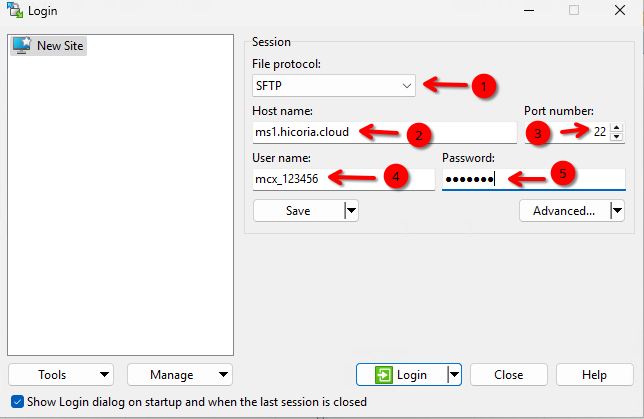
Image explanation:
- Select a communication protocol; we typically choose FTP for game servers and SFTP for virtual servers.
- Host: Usually, you enter an IP address, but you can also enter a domain name.
- The port for FTP is generally 21 for all our services; for VPS, SFTP is provided with port 22.
- Your username was sent to you after payment of your order or generated by the server administrator.
- You can obtain your password in the same way as described in the previous point.
Unless you're using a VPS, use FTP.
Web FTP:
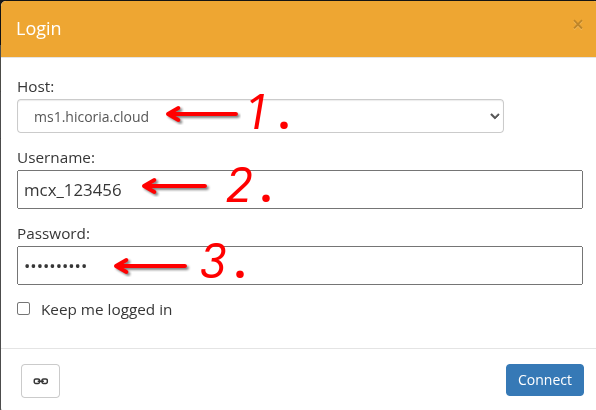
Image explanation:
- The host on which your server is located.
- Your username was sent to you after payment for your order was processed, or it was generated by the server administrator.
- You can obtain the password in the same way as described in the previous step.
When can I use Web FTP?
You can use this feature for game servers such as Minecraft.
Putty client for SSH:
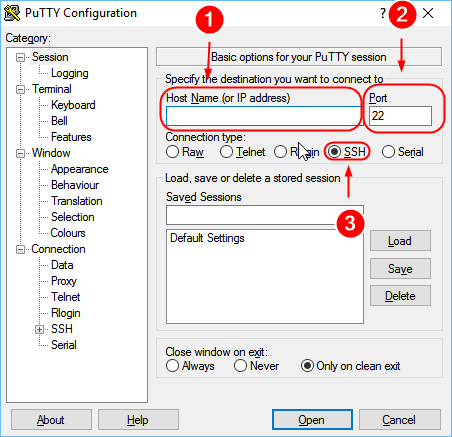
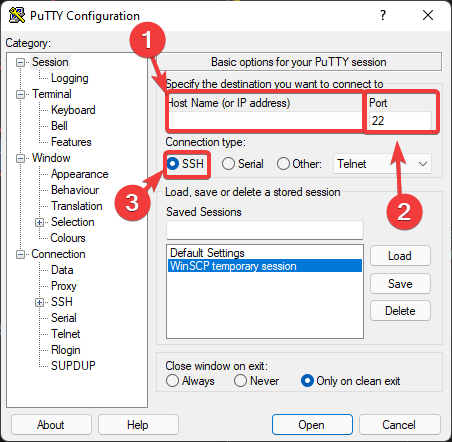
Image explanation:
- The IP address assigned to your VPS.
- Port for a VPS, the default port is 22.
- The connection type we need to set to “SSH” to connect to the console