Windows - Extending a Drive
Requirements
- Windows desktop or server
- Remote Desktop
Disk Expansion
- To save all data and shut down the system properly, we recommend turning off the system
- Let's log in to the web administration panel
- Set the disk to the new value, then confirm this selection by clicking the “Change” button
Warning! The disk can only be shrunk by reinstalling!
If you really want to perform this action, you'll need to contact support. - Start the server (via the web interface)
- Let's log in and wait for the system to load
- Open “Control Panel”
- Open ”Administrative tools”
- Open En:”Computer Managment”
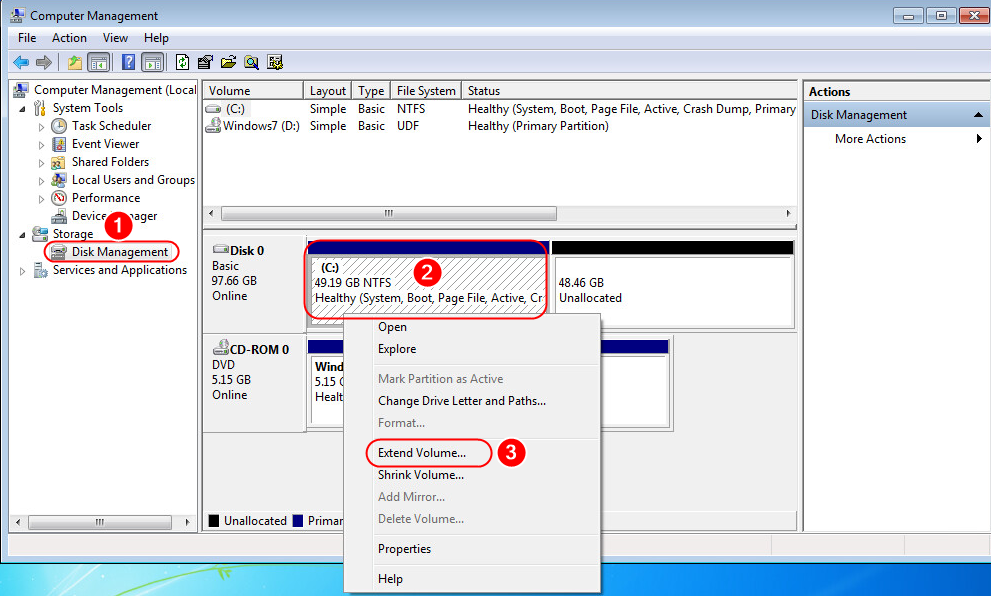
- Next, follow the steps shown in the illustration:
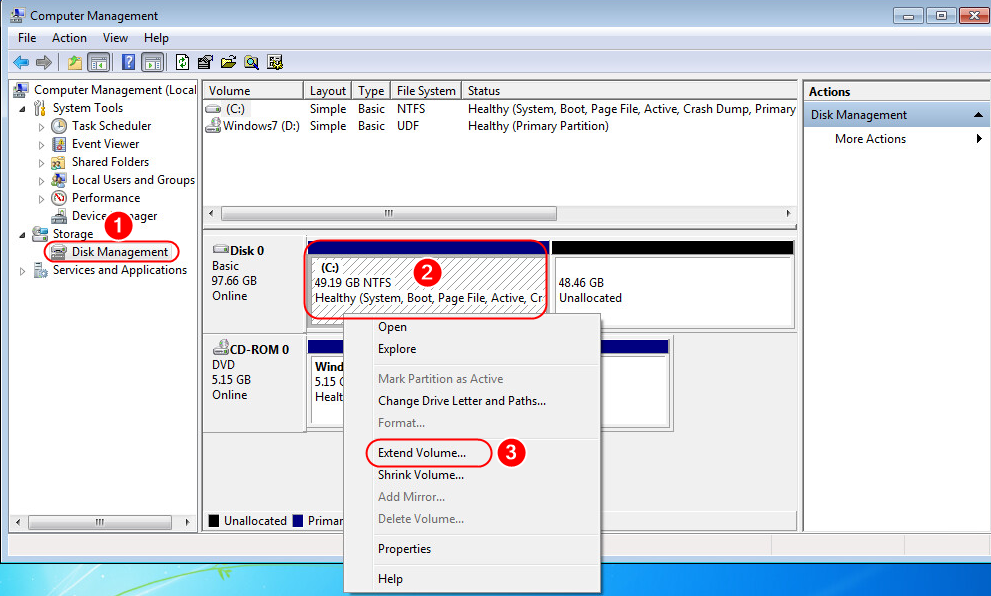
- Open Disk Management
- Right-click the disk you want to expand
- Select the option to expand the volume
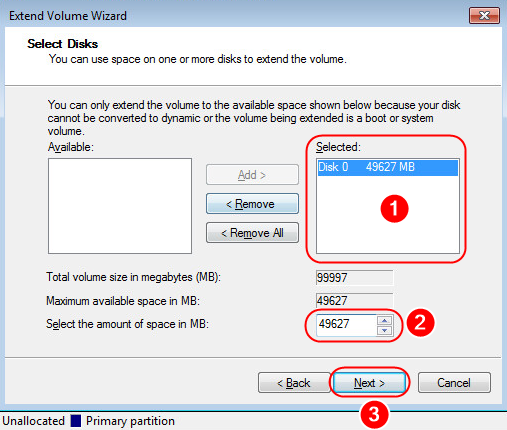
- After opening the wizard, click “Next”
- To enlarge the image, follow these steps:
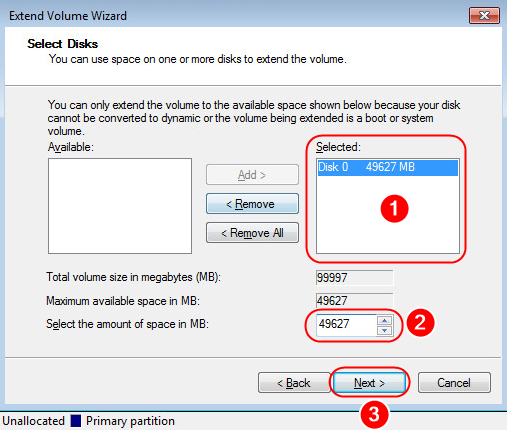
- Select the unformatted portion of the disk
- We will describe the maximum possible size
- We will confirm
- As a final step, click “Finish”